
What software is needed to connect a temperature indicator to a computer?
Leave a message

As a supplier of temperature indicators, I often receive inquiries from customers about how to connect these devices to a computer. Establishing a connection between a temperature indicator and a computer can be crucial for various applications, such as data logging, remote monitoring, and process control. In this blog post, I will discuss the software requirements for connecting a temperature indicator to a computer, along with some practical considerations.
Understanding the Connection Interface
Before delving into the software aspects, it's essential to understand the connection interface between the temperature indicator and the computer. There are several common interfaces used for this purpose:
- Serial Port (RS - 232, RS - 485): Serial ports have been widely used for device communication for many years. RS - 232 is suitable for short - distance communication, while RS - 485 can support longer distances and multiple devices on the same bus.
- USB (Universal Serial Bus): USB is a popular choice due to its ease of use and high - speed data transfer capabilities. Many modern temperature indicators come with a USB interface for direct connection to a computer.
- Ethernet: Ethernet provides a network - based connection, allowing for remote access and integration with larger systems. It is commonly used in industrial settings where multiple devices need to be connected across a network.
Software for Serial Port Connection
If your temperature indicator uses a serial port (RS - 232 or RS - 485) for communication, you will need software that can communicate over the serial interface. Here are some types of software that can be used:
- Terminal Emulators: Terminal emulators are basic software tools that allow you to send and receive data over a serial port. Programs like PuTTY (for Windows, Linux, and macOS) and Tera Term (for Windows) are popular choices. They provide a simple text - based interface for interacting with the temperature indicator. You can use them to send commands to the device and receive temperature readings in real - time. However, terminal emulators are mainly for basic communication and may not offer advanced features like data logging or graphical representation.
- Data Logging Software: For more comprehensive data collection and analysis, data logging software is required. There are many commercial and open - source data logging programs available. For example, LabVIEW from National Instruments is a powerful graphical programming environment that can be used to develop custom data logging applications for serial - connected temperature indicators. It allows you to create user - friendly interfaces, log data to a file or database, and perform various data analysis tasks. Another option is the open - source software Sigrok, which supports a wide range of measurement devices and can be used for serial data acquisition and logging.
Software for USB Connection
When using a USB - connected temperature indicator, the software requirements may be different. Many USB - enabled devices come with their own dedicated software provided by the manufacturer. This software is designed to work specifically with the device and often includes features such as:
- Device Configuration: You can use the software to configure the temperature indicator, such as setting the measurement range, sampling rate, and communication parameters.
- Data Display and Logging: The software typically provides a graphical interface to display the temperature readings in real - time. It also allows you to log the data over a period of time for further analysis. For example, if you are monitoring the temperature of a laboratory experiment, you can set the software to log the temperature every few minutes and save the data in a CSV or Excel file.
- Alarm Settings: Some software allows you to set alarm thresholds for the temperature readings. If the temperature goes above or below the set threshold, the software can trigger an alarm, such as a pop - up message or an email notification.
In addition to the manufacturer - provided software, you can also use general - purpose data acquisition software. For instance, Python with libraries like PySerial and PyUSB can be used to develop custom applications for USB - connected temperature indicators. Python is a versatile programming language that allows you to write code to communicate with the device, process the data, and perform various tasks.


Software for Ethernet Connection
If your temperature indicator is connected via Ethernet, you will need software that can communicate over the network. Here are some options:
- Web - Based Software: Many modern temperature indicators with Ethernet interfaces have built - in web servers. You can use a web browser to access the device's configuration and monitoring pages. This allows you to view the temperature readings, configure the device settings, and perform other operations without the need to install additional software on your computer. Web - based software is convenient for remote access and can be accessed from any device with a web browser.
- Industrial Automation Software: In industrial settings, industrial automation software like Wonderware or Ignition by Inductive Automation can be used to integrate Ethernet - connected temperature indicators into a larger control system. These software platforms provide advanced features such as data visualization, control logic programming, and integration with other industrial devices. They allow you to create a comprehensive monitoring and control solution for your temperature measurement needs.
Practical Considerations
When choosing the software for connecting your temperature indicator to a computer, there are several practical considerations to keep in mind:
- Compatibility: Make sure the software is compatible with your temperature indicator model and the operating system of your computer. Check the manufacturer's documentation for a list of supported software.
- Ease of Use: Consider the ease of use of the software. If you are not a technical expert, you may prefer software with a simple and intuitive interface.
- Functionality: Determine the specific functionality you need, such as data logging, alarm settings, or data analysis. Choose software that offers the features you require.
- Cost: Some software may be free, while others may require a license fee. Consider your budget when choosing the software.
Other Related Flow Measurement Products
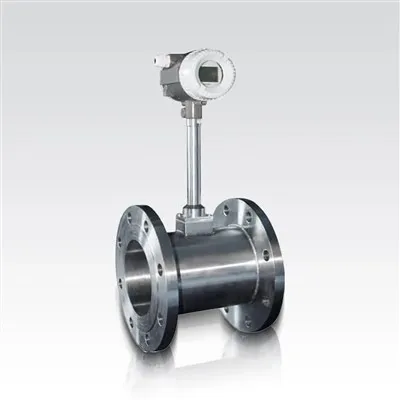
In addition to temperature indicators, our company also offers a range of flow measurement products. For example, we have Turbine Flow Meter, which is suitable for measuring the flow rate of liquids and gases. The turbine flow meter works based on the principle of the turbine's rotation speed being proportional to the flow rate. We also provide Vortex Flowmeter, which uses the vortex shedding phenomenon to measure the flow rate. It is known for its high accuracy and reliability. Another product is the LDG Electromagnetic Flowmeter, which is ideal for measuring the flow rate of conductive liquids.
Conclusion
Connecting a temperature indicator to a computer requires the right software depending on the connection interface. Whether it is a serial port, USB, or Ethernet connection, there are various software options available to meet your specific needs. By choosing the appropriate software, you can effectively monitor and control the temperature in your applications.
If you are interested in our temperature indicators or other flow measurement products, we encourage you to contact us for procurement and further discussions. We are committed to providing high - quality products and excellent customer service.
References
- National Instruments. LabVIEW User Manual.
- Sigrok Project. Sigrok Documentation.
- Wonderware. Wonderware System Platform User Guide.
- Inductive Automation. Ignition User Manual.